Why Your Image Format Choice Actually Matters
Choosing an image format can seem like a small technical decision, but it can have a noticeable effect on how an image looks, how large the file becomes, where it can be used, and how much flexibility you have when editing it later. A logo may need a format that scales cleanly, while a website photograph may benefit from efficient compression. A photographer may want to preserve original camera data, while a print workflow may prioritize image fidelity over file size.
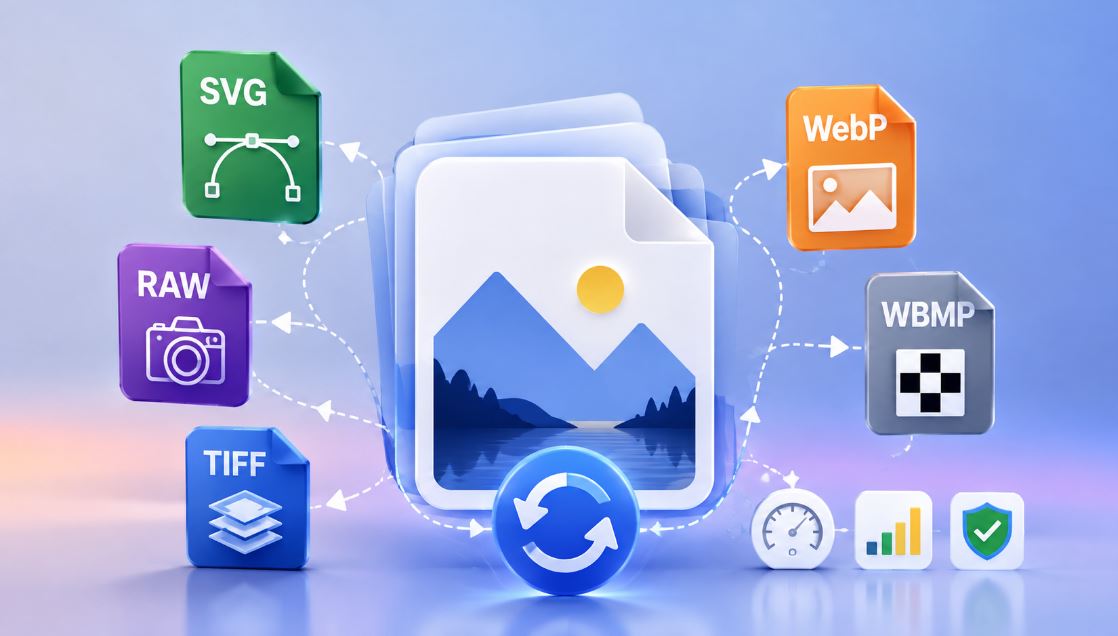
There's no single image format that's best for every situation. SVG, WebP, RAW, TIFF, WBMP, JPEG, and PNG were all created with different priorities in mind. Understanding those differences makes it much easier to choose the right format and avoid unnecessary quality loss or compatibility problems.
Why Choosing the Right Format Matters
Image formats make different trade-offs between quality, file size, compatibility, editing flexibility, and other characteristics. Choosing the right one starts with understanding what you actually need the image to do:
- Visual quality: Some compression methods discard image information, while lossless methods are designed to preserve it.
- File size: Compression can significantly affect how much storage and bandwidth an image requires.
- Compatibility: Different applications, devices, and platforms support different formats and features.
- Editability: Some formats are better suited to professional editing and preserving information for later adjustments.
- Transparency: Some formats can store transparent areas, useful for logos, graphics, and interface elements.
- Scalability: Vector formats can be resized without the pixelation associated with raster images.
These characteristics are connected — a format built for very small files makes different compromises than one designed for maximum image preservation. The right choice depends on the purpose of the image.
Raster vs. Vector: The Basic Difference
One of the most useful distinctions to understand is the difference between raster and vector graphics.
Raster images are made from a grid of pixels, each containing information like color and brightness. JPEG, PNG, WebP, and TIFF are all raster formats, and digital photographs are raster images too, representing a large amount of pixel-based visual information.
Vector graphics describe shapes using paths, coordinates, curves, and other mathematical information instead. SVG is the most common example. Because the image is described as geometry rather than a fixed grid of pixels, it can be rendered at different sizes without the pixelation normally associated with enlarging a raster image.
This difference explains why a logo and a photograph often need different approaches. A simple logo made of a few shapes and colors is well suited to vector graphics. A photograph, with far more complex color and tonal information, is generally better represented as a raster image.
SVG: When Scalability Matters
SVG (Scalable Vector Graphics) is built around vector-based image data — instead of storing a fixed collection of pixels, it describes shapes, paths, text, and other graphical elements directly.
This makes SVG particularly useful for graphics that need to appear at many different sizes. A logo might be displayed as a small element on a website and later used at a much larger size — a properly created vector graphic stays sharp across those different dimensions.
SVG is commonly useful for:
- Logos and brand marks
- Icons
- Simple illustrations
- Diagrams and technical graphics
- User-interface graphics
SVG also has a practical advantage for web development: it's based on XML and can be styled or manipulated with standard web technologies, and modern browsers render it directly.
That said, converting a photograph to SVG doesn't automatically turn it into a clean, professionally designed vector illustration. The vectorization process has to approximate the visual information in the original raster image using paths and shapes — complex photographs can produce an enormous number of paths, often making the result less practical than the original raster file.
WebP: A Practical Format for Modern Websites
WebP is a modern image format designed for efficient compression while supporting the features web graphics need. It supports both lossy and lossless compression and can store transparency.
For websites, reducing unnecessary image file size can meaningfully speed up page loading, particularly on pages with many large images or for visitors on slower connections. WebP can be a practical choice for photographs, illustrations, and other raster images on modern websites — though how much compression it actually achieves depends on the source image and the encoding settings; there's no single reduction percentage that applies to every image.
WebP is supported by current versions of all major browsers, making it a practical option for most modern web projects, though specific older applications or specialized workflows may still require another format.
RAW: What You Can and Cannot Recover
RAW files are fundamentally different from finished image files like JPEG. A genuine camera RAW file contains minimally processed information captured directly by the camera's image sensor, along with the information needed to interpret that data.
One of the main advantages of shooting RAW is the flexibility it gives during post-processing — depending on the camera and original exposure, RAW workflows can leave much more room for adjustments like white balance, exposure, highlights, shadows, and color.
Once a photo has been processed and saved as JPEG or another finished format, though, the original sensor-level information that wasn't retained in that file can't be reconstructed. Converting a JPEG or PNG into a RAW-compatible container doesn't recreate genuine camera RAW data — the result is just a different way of storing the existing (already-processed) image, not a restoration of information that was never preserved.
For photographers planning substantial editing, keeping the original camera RAW files is far more valuable than trying to recreate RAW data from an already-processed image.
TIFF: When Image Quality and Preservation Matter
TIFF (Tagged Image File Format) is widely used in professional imaging, scanning, printing, publishing, and archival workflows. Its flexibility allows it to store high-quality raster data and support various compression and color configurations.
TIFF can use lossless compression, or be stored without compression at all. It also supports different bit depths and can carry color-related information such as embedded color profiles. These characteristics make TIFF useful whenever image fidelity and editing flexibility matter more than keeping files small — the trade-off being that TIFF files can be substantially larger than compressed formats like JPEG or WebP.
TIFF also supports multiple images within a single file (multi-page TIFF), which is useful for scanned documents and collections of related images.
WBMP: The Format You May Have Never Heard Of
WBMP (Wireless Bitmap) is a specialized format associated with the older Wireless Application Protocol (WAP) ecosystem. Unlike modern full-color formats, WBMP uses a 1-bit representation — each pixel is either black or white, with no gray or color values possible directly. Conversion tools handle this using dithering, arranging patterns of black and white pixels to give the visual impression of different shades.
WBMP has little practical use for modern websites, where formats like WebP, JPEG, PNG, and SVG are generally more appropriate. Today it's mainly relevant to legacy applications, embedded devices, specialized hardware, or systems that specifically require a monochrome bitmap format.
A Simple Guide to Choosing an Image Format
| If you need... | Consider... |
|---|---|
| A scalable logo or icon | SVG |
| An efficient image for a modern website | WebP |
| Original camera data for editing | RAW |
| High-quality storage or professional imaging | TIFF |
| A legacy or specialized monochrome system | WBMP |
| Broad compatibility for photographic images | JPEG |
| Lossless raster graphics with transparency | PNG |
These are general guidelines rather than strict rules — the best choice can shift depending on the software, device, workflow, and requirements of your project.
Common Image Conversion Mistakes
- Expecting JPEG-to-RAW conversion to restore original data. A processed JPEG doesn't contain all the sensor information the camera captured, and changing its file format can't bring that discarded information back.
- Converting every image to SVG. SVG excels at suitable vector-style graphics, but photographs and highly detailed images can become unnecessarily complex once forced into vector paths.
- Choosing TIFF when file size is the main priority. TIFF is excellent for quality-focused workflows, but it's often much larger than formats designed specifically for efficient delivery.
- Using WBMP for modern websites. WBMP was designed for very different technical conditions, and outside a system that specifically requires it, it's rarely a sensible choice today.
- Assuming conversion always improves quality. Conversion changes how image information is stored — it can't create detail that wasn't in the source, and some conversions discard information depending on the format and compression settings chosen.
- Ignoring the original file. When an original image might be needed later, keeping a copy before converting gives you the option to produce another output format without repeatedly converting an already-processed file.
How to Convert Images Without Losing What Matters
Before converting an image, think about where the resulting file will be used and which characteristics matter for that purpose:
- Start with the original. Use the highest-quality source available.
- Choose the output format based on its purpose. A website image has different requirements than an archival master.
- Check compression. Lossy compression can reduce file size but may also remove image information.
- Consider resolution. Changing the format doesn't automatically change the image's useful resolution.
- Check transparency. If transparent areas matter, confirm the selected format actually supports them.
- Consider color and bit depth. Professional workflows may need capabilities that simpler formats don't provide.
- Check compatibility. Make sure the software or device receiving the file supports the selected format and its features.
Most importantly: a format conversion can't recover information that's already been discarded. Starting with the best available source gives you the greatest flexibility down the line.
Using Online Image Conversion Tools
Online image converters are useful when you need to change an image from one format to another without installing specialized software. The right tool depends on the format you need and the characteristics of your source image — for example, converting raster images to SVG, creating RAW-compatible output, converting to WebP, preparing monochrome WBMP files, or producing TIFF files for quality-focused work each call for a different tool.
Before converting an important image, it's worth checking the source format, the desired output format, and any quality or compatibility requirements your project has.
Frequently Asked Questions
What is the best image format for a website? There's no single best format for every website. WebP is often a practical choice for modern raster images because it supports efficient compression and transparency. SVG is generally better suited to logos, icons, and other vector-style graphics.
Should I use SVG or WebP for a logo? SVG is generally the strong choice when the logo is made of vector-style shapes and needs to scale to different sizes. WebP can work for raster versions of a graphic, but it doesn't offer the same vector scalability.
Can JPEG be converted back to RAW? A JPEG can be placed into another type of container or converted into a RAW-compatible format in some workflows, but this doesn't recreate the original camera sensor data. Genuine RAW information not preserved in the JPEG can't be recovered through conversion.
Is TIFF better than JPEG for printing? TIFF can be preferable for workflows that need high-quality or lossless image storage, but the right format depends on the printing service and the project's requirements. JPEG is also suitable for many print applications when properly prepared.
Does WebP support transparency? Yes — WebP supports transparency, including with lossy compression, which makes it suitable for many web graphics that need transparent areas.
What is WBMP used for? WBMP is mainly associated with legacy WAP applications and specialized or embedded systems that require a 1-bit monochrome bitmap. It's generally not intended for ordinary modern web images.
Does converting an image reduce quality? It can, depending on the source, destination format, and compression settings. Lossy conversion can discard image information, while lossless conversion is designed to preserve the data represented in the source.
Should I keep the original image after conversion? Keeping the original is generally good practice, particularly for important photographs, design assets, and archival material — it lets you produce a different output format later without relying on an already-converted file.
Final Thoughts
Choosing an image format is ultimately about matching the format to the job. SVG is particularly useful when scalable vector graphics are needed, WebP is a practical option for many modern web images, RAW matters when original camera data needs to be preserved, TIFF fits quality-focused professional workflows, and WBMP remains relevant mainly in specialized or legacy environments.
The most useful approach isn't asking which format is universally best, but which format preserves the characteristics your particular project needs — image quality, file size, compatibility, transparency, scalability, editing requirements, and the final destination all matter before converting.