PNG vs. WebP: How to Choose the Right Format for Each Image
You have an image ready to publish, and your editor asks: save it as PNG or WebP?
The answer depends less on which format is universally "better" and more on what the image contains, how it will be used, and where it needs to work. Choose poorly for a large website image and you may send more data to visitors than necessary. Choose a format that doesn't fit your workflow and you may run into compatibility problems later.
This guide compares PNG and WebP in practical terms so you can choose the right format for each image, rather than defaulting to one format for everything.
What Is PNG?
PNG, or Portable Network Graphics, dates back to 1996 and was originally developed as a patent-free alternative to GIF.
PNG uses lossless compression — when a PNG is decoded, the image data is reproduced without the losses associated with lossy formats. This makes PNG useful whenever preserving the exact stored image information matters.
PNG compression works particularly well with images containing repeated patterns and relatively uniform areas of color, such as logos, icons, diagrams, and many screenshots. It's generally less efficient for photographs, where there's much more fine-grained variation between pixels.
PNG also supports transparency through an alpha channel and is extremely widely supported across browsers, image editors, design applications, and other software. That combination — lossless compression, transparency, and broad compatibility — is why PNG remains useful even though newer formats can often produce smaller files.
What Is WebP?
WebP is an image format introduced by Google in 2010 with the goal of reducing image file sizes on the web.
Unlike PNG, WebP supports both lossy and lossless compression. With lossy WebP, some image information is discarded during encoding in exchange for a smaller file. With lossless WebP, the decoded image reproduces the source image without those lossy changes.
WebP also supports transparency and animation, making it useful for a range of web graphics in addition to photographs. Google's own documentation describes WebP as supporting lossy and lossless compression for photographic, transparent, and graphical images alike.
One technical detail worth knowing: WebP supports maximum dimensions of 16,383 × 16,383 pixels. For normal website images this is rarely a practical limitation, but it can matter in specialized imaging workflows.
Lossless vs. Lossy: The Distinction That Actually Matters
The most important question isn't simply "PNG or WebP?" — it's usually "do I need lossless or lossy compression?"
- Lossless compression preserves the image information exactly when decoded. PNG is lossless, and WebP can also be encoded losslessly.
- Lossy compression deliberately removes some information to reduce file size, aiming to keep the visual difference small enough that the trade-off is worthwhile. WebP supports lossy compression; PNG does not.
This gives WebP real flexibility: use lossless WebP when exact reproduction matters, or lossy WebP when reducing file size is the priority. That flexibility is more useful in practice than any single "WebP is X% smaller" statistic, because the best setting always depends on the image itself.
File Size: What the Research Actually Shows
WebP can be substantially smaller than PNG, but the exact difference depends on the image and the encoding settings used.
Google's official WebP FAQ states that lossless WebP images were 26% smaller than PNG images in the study cited — a benchmark result from Google's own testing, not a guarantee for every individual file. Google's published lossy WebP research also found WebP producing average file sizes 25–34% smaller than JPEG at equivalent SSIM quality across the datasets tested — useful context, though that's a WebP-vs-JPEG comparison rather than a PNG-vs-WebP one.
A photograph with complex textures, a flat-color logo, a screenshot, and an illustration can all compress very differently. Two practical conclusions follow:
- If you have a photograph stored as PNG, converting it to a lossy web format can produce a significant size reduction, since PNG isn't designed to exploit photographic data the way lossy compression can.
- If you have a graphic that must remain pixel-perfect, compare lossless WebP against PNG directly rather than assuming lossy WebP is appropriate.
The only reliable way to know how much smaller a particular image will become is to test that image.
Image Quality
With lossless PNG and lossless WebP, there's no quality trade-off at all — the decoded image retains the source information. With lossy WebP, quality becomes a setting: higher-quality encoding produces a larger file while preserving more detail, and lower-quality encoding shrinks the file but increases the chance of visible compression artifacts.
Photographs often tolerate this trade-off well, since small changes in texture and color are hard to notice at normal viewing sizes. Sharp graphics are less forgiving — artifacts become more noticeable around small text, thin lines, high-contrast edges, icons, UI elements, and geometric shapes. For those images, PNG or lossless WebP is usually the safer choice.
So the more useful question isn't "which format has better quality?" — it's "do I need exact reproduction, or is a smaller file with visually acceptable compression more valuable here?"
Transparency
Both PNG and WebP support transparency, so this isn't a PNG-exclusive feature. PNG stores transparency through an alpha channel, and WebP supports transparency as well, including with lossy compression — Google's documentation explicitly lists transparent images among WebP's supported use cases.
For a simple logo with a transparent background, WebP can be a practical alternative to PNG on a modern website. Graphics with soft shadows, gradual fades, or complex semi-transparent effects deserve closer attention, since compression can affect delicate edges — check the final output visually. If preserving the appearance exactly matters, PNG or lossless WebP is the safer approach.
Matching the Format to the Image
Photographs. PNG is generally inefficient here, since its lossless compression doesn't reduce photographic data as aggressively as lossy compression can. For a photo delivered on a website, lossy WebP is often the strong choice when file size matters. If you need an archival copy, keep a proper master rather than treating the web delivery file as your only source.
Logos, icons, and flat-color graphics. These often work well as PNG, since flat areas and repeated colors are relatively PNG-friendly. Lossless WebP can often produce a smaller file while preserving the image fully, making it attractive for assets staying on a modern website. PNG can still be preferable when the same asset needs to move between different systems or organizations where compatibility matters more than saving a few kilobytes.
Screenshots and images with text. These contain sharp edges, small text, and interface details that reveal lossy compression artifacts quickly. PNG or lossless WebP is usually safer — if you do save a screenshot with lossy compression, check text and high-contrast edges closely before publishing.
Website hero images and banners. These are often photographs or photo-heavy compositions and can be among the largest assets on a page. Lossy WebP is often useful here, but the real goal isn't "hero image = WebP" by default — it's choosing a format and compression level that gives an acceptable visual result at the smallest practical file size.
Website Performance and SEO
Images can account for a significant share of a webpage's download weight, which can affect how quickly a page loads — particularly relevant to metrics like Largest Contentful Paint (LCP), where a large above-the-fold image plays a big role.
It's worth being precise here: using WebP is not, by itself, a direct Google ranking boost. The benefit is indirect — a properly optimized image reduces the data a browser needs to download, which can contribute to a faster, more efficient page. Google's WebP documentation frames the format's purpose around creating smaller images that help make the web faster.
So the useful question isn't "does Google reward WebP?" — it's "can this image be delivered efficiently without sacrificing the quality visitors need?"
Browser and Platform Support in 2026
WebP is now supported by all major modern browsers, so compatibility is no longer a significant concern for most public websites — Google's current documentation lists native support in Chrome, Edge, Firefox, Opera, and Safari 14 and later.
PNG's advantage lies outside the browser, where it's extremely well established. That can matter when an image needs to move through systems not designed around modern web formats:
- Email: WebP support varies between email clients, so PNG or JPEG can still be the safer choice.
- Legacy software: Some older applications or upload systems accept only a limited set of traditional formats.
- Print workflows: Professional printing often uses TIFF or PDF, but PNG may still be accepted more readily than WebP by some systems.
- Specialized color workflows: Certain professional pipelines may need capabilities beyond what WebP provides.
For a normal modern website, though, WebP compatibility is generally no longer a real obstacle.
Which Format Should You Choose?
| Image type | Recommended format | Why |
|---|---|---|
| Photograph for a website | WebP (lossy) | Substantially reduces delivery size while maintaining good visual quality |
| Logo or icon staying on your website | WebP (lossless) | Often smaller than PNG while preserving the image fully |
| Logo or icon also used outside your website | PNG or WebP, depending on compatibility | The receiving system may matter more than file size |
| Screenshot or image with small text | PNG or lossless WebP | Preserves sharp edges and text |
| Archival or editing master | Native/source format when available | Keeps the original workflow independent of a delivery format |
| Lossless raster export needed | PNG or lossless WebP | Both preserve the image without lossy compression |
| Email asset | PNG or JPEG, depending on the workflow | Compatibility can matter more than format efficiency |
| Website hero image or banner | Usually WebP (lossy) | Large images benefit from efficient compression |
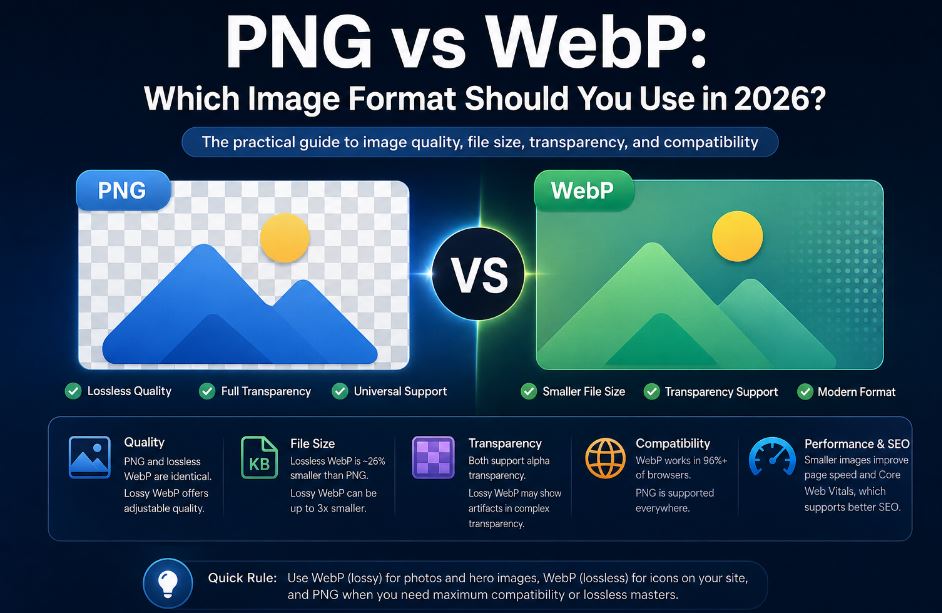
Use this table as a starting point, not a rigid rule. The underlying questions are always: Does the image need to be lossless? Where will it be used? How important is compatibility with other software? How much can it be compressed before quality becomes unacceptable?
A Practical Workflow
A sensible approach is to separate your master file from your web delivery file. Keep the original design or source file when one exists — a native design file, a high-quality raster export, or another source format — and generate the appropriate delivery format for the website from that. For many modern sites, that means generating WebP versions of images that benefit from smaller file sizes.
If you start with a PNG and need a WebP version, our Image to WebP converter handles the conversion with support for transparency and batch processing. If you have a WebP image and need a PNG version for a different workflow, our Image to PNG converter provides the reverse conversion, with alpha-channel retention and batch support.
Before replacing important original files, keep your source or master asset separately — a web delivery format should never become your only copy of an important image.
The Bottom Line
There's no single winner between PNG and WebP. For many images delivered through modern websites, WebP is often the more efficient choice, particularly when file size is a priority. PNG remains valuable when you need lossless raster output, broad compatibility, or a workflow that specifically benefits from its capabilities.
A practical rule of thumb:
- Website photograph: WebP is often a strong choice.
- Website logo or icon: try lossless WebP and compare it against PNG.
- Screenshot with small text: PNG or lossless WebP.
- Image that must work across older systems: PNG may be safer.
- Important original or master file: keep the native source or an appropriate lossless master.
- Not sure: compare the actual files rather than relying on a blanket rule.
In practice, many websites use both formats deliberately — the best choice is the one that gives you the image quality, compatibility, and file size the specific job actually needs.
Sources
- Google for Developers — WebP FAQ
- Google for Developers — WebP Compression Study
- Google for Developers — WebP Compression Study (PNG/lossless research)